



Avinton Email and Google Account Setup
Section 1 Avinton Webmail (Email) setup

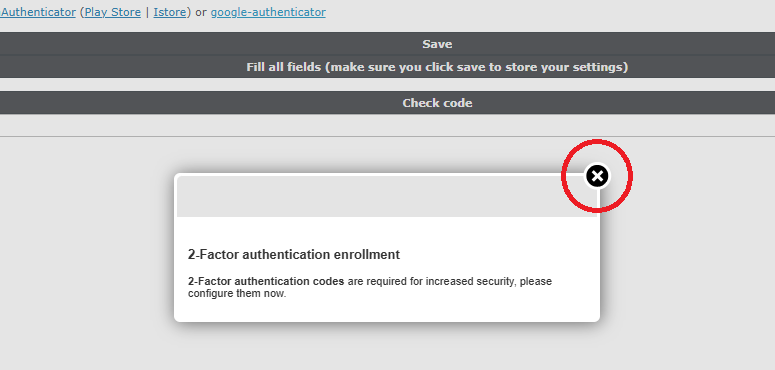
2. Close the pop-up window asking for 2FA enrollment
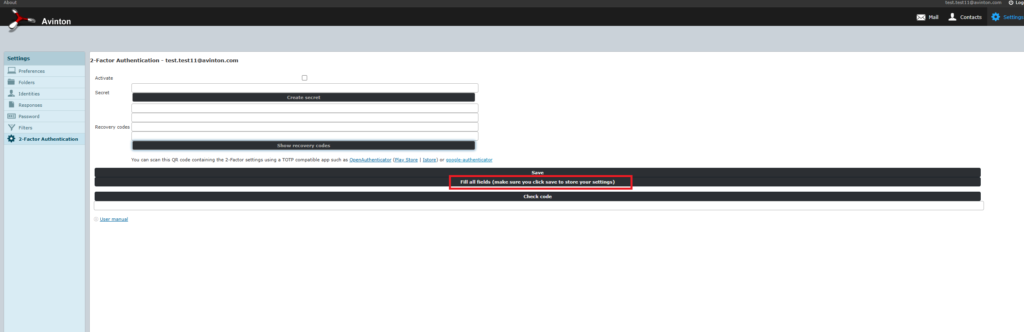
3. Click [Fill all Fields (make sure you click save to store your settings)] “全フィールド設定(保存必要)”
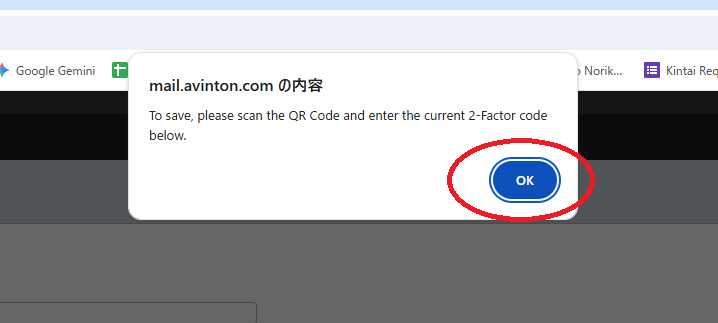
4. Click OK on the pop up
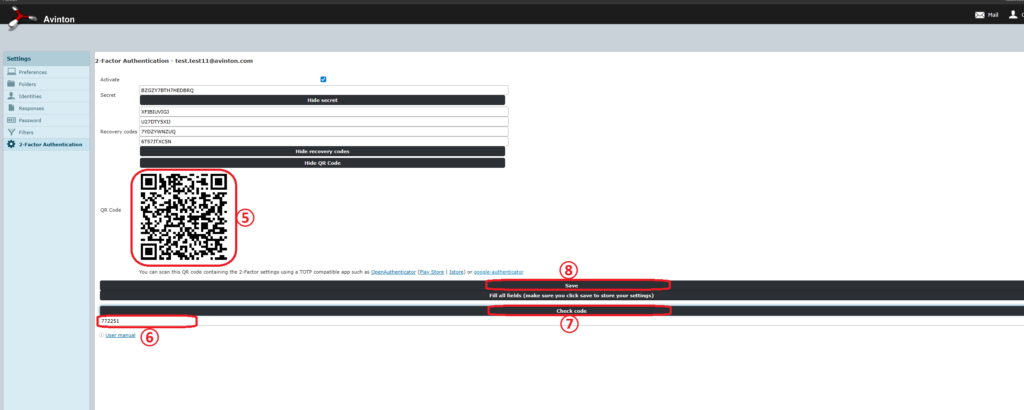
5. Scan the QR Code using Google Authenticator on your phone and
6. the PIN code from the Authenticator app into the “Check code” textbox
7. Click [Check Code] to verify the code
8. Click “Save”
9. Change default password to your original password
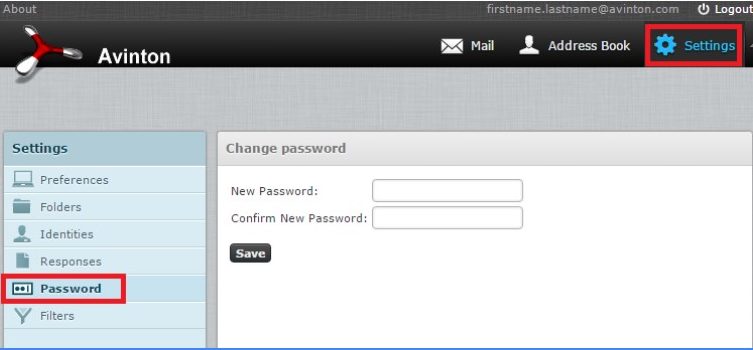
Go to Settings
Click “Password” and enter a new password
(make sure you save it to your note)
Optional
Avinton Email is accessible through our Webmail; however, if you wish to use a mobile device or a different email software, please refer to the alternatives below.”
Avinton webmailにてメールの確認は可能ですが、携帯電話やほかのメールソフトでの確認を希望する場合は、以下の代替案をご活用ください。
Checking your email on mobile devices ・ Gmail モバイルアプリ (IMAP設定での利用)
Checking your email on your mobile devices
Gmail モバイルアプリ(IMAP設定での利用):
0. If you do not have Gmail App installed on your mobile devices,
please download the Gmail App from App Store /Google Play Store
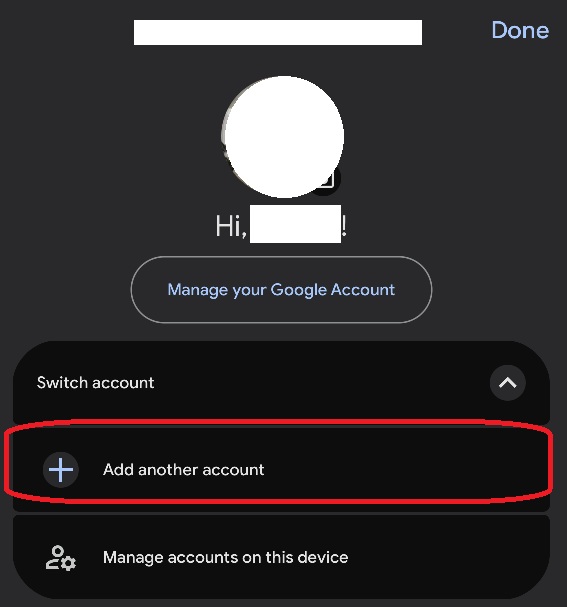
1. Go to Settings → Add Account then follow the screens below:
Select Other(IMAP)
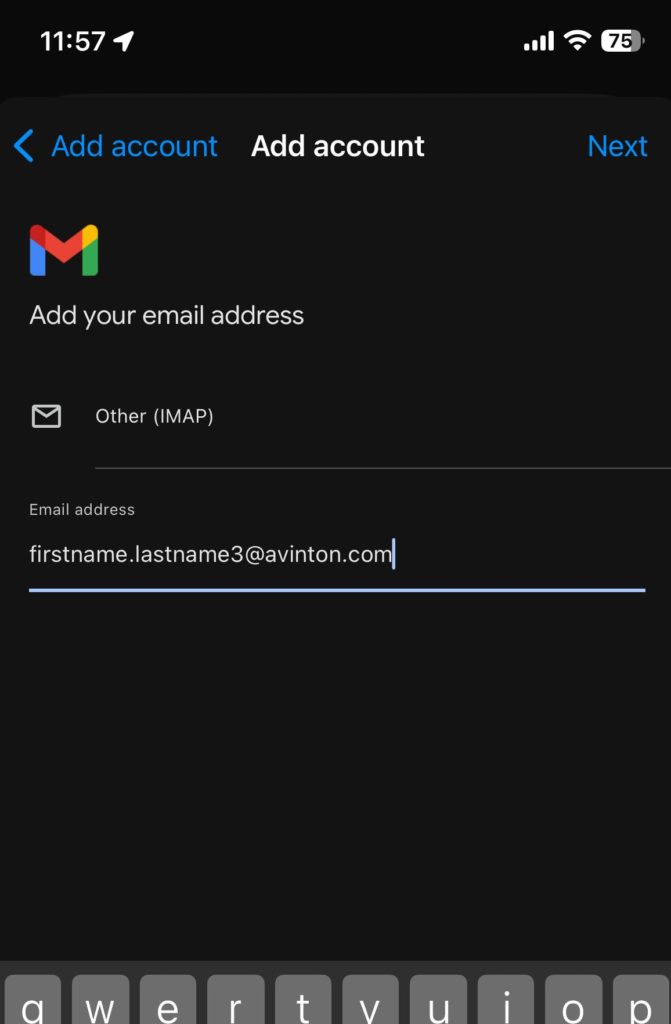 2. Enter your Email Address and click Next
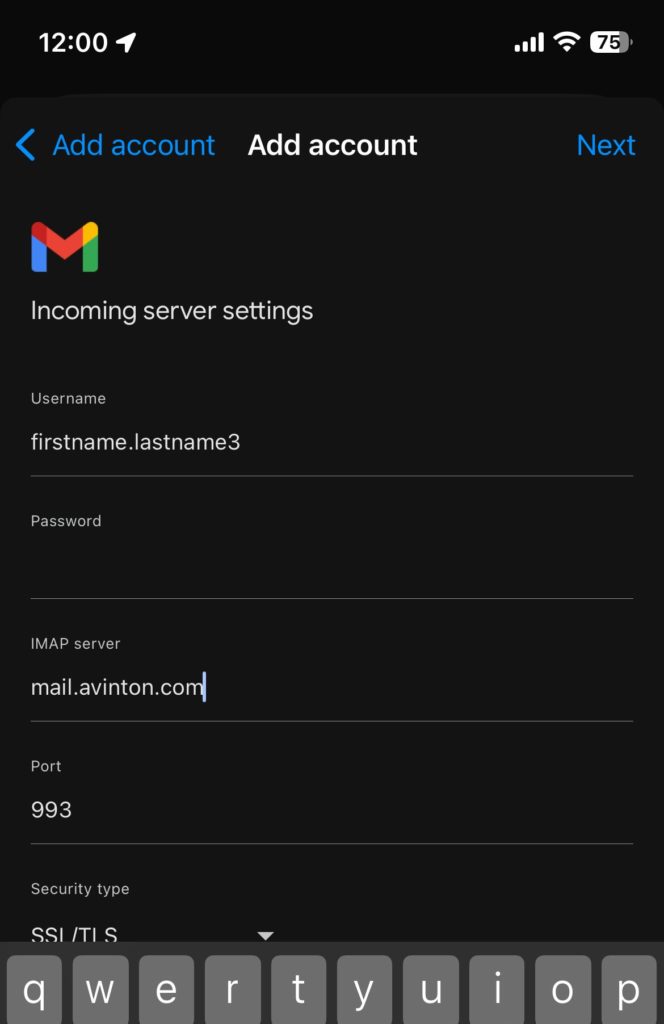 3. Input following Incoming Server Settings:
-
User name: your avinton email address <firstname.lastname@avinton.com>
-
Password: your Avinton password
-
IMAP server: mail.avinton.com
-
Port: 993
-
Security Type: SSL/TLS
Click Next
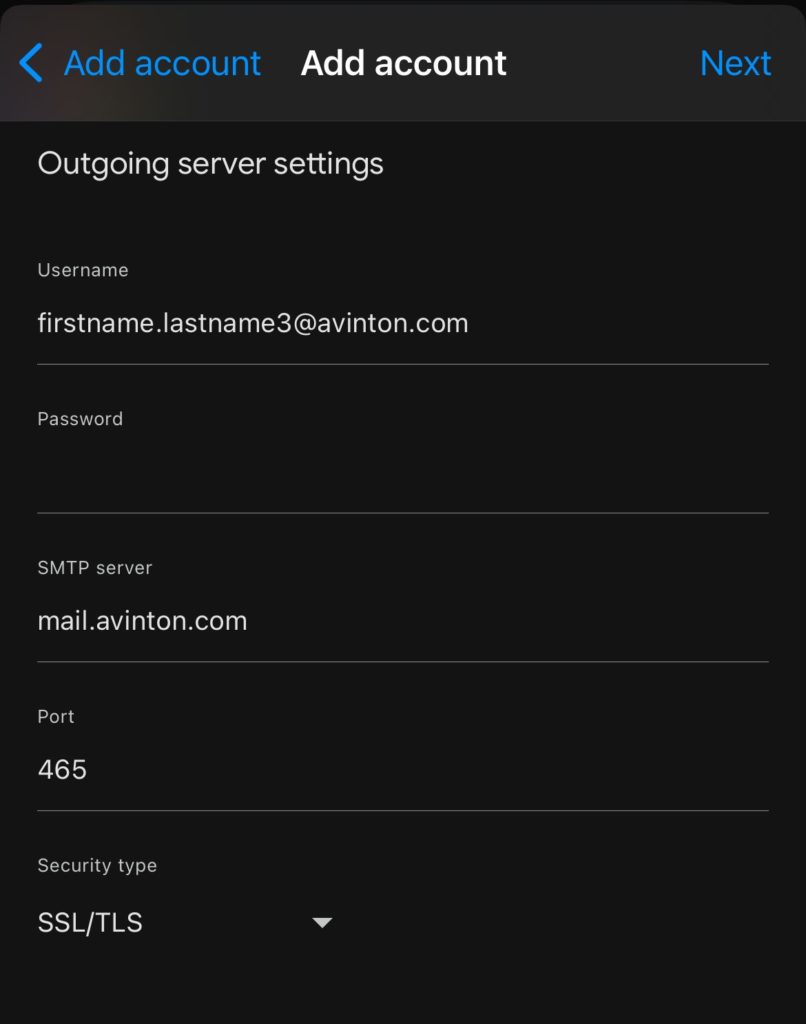 4. Input following Outgoing Server Settings:
-
User name: your avinton email address <firstname.lastname@avinton.com>
-
Password: your password
-
SMTP server: mail.avinton.com
-
Port: 465
-
Security type: SSL/TLS
Click Next
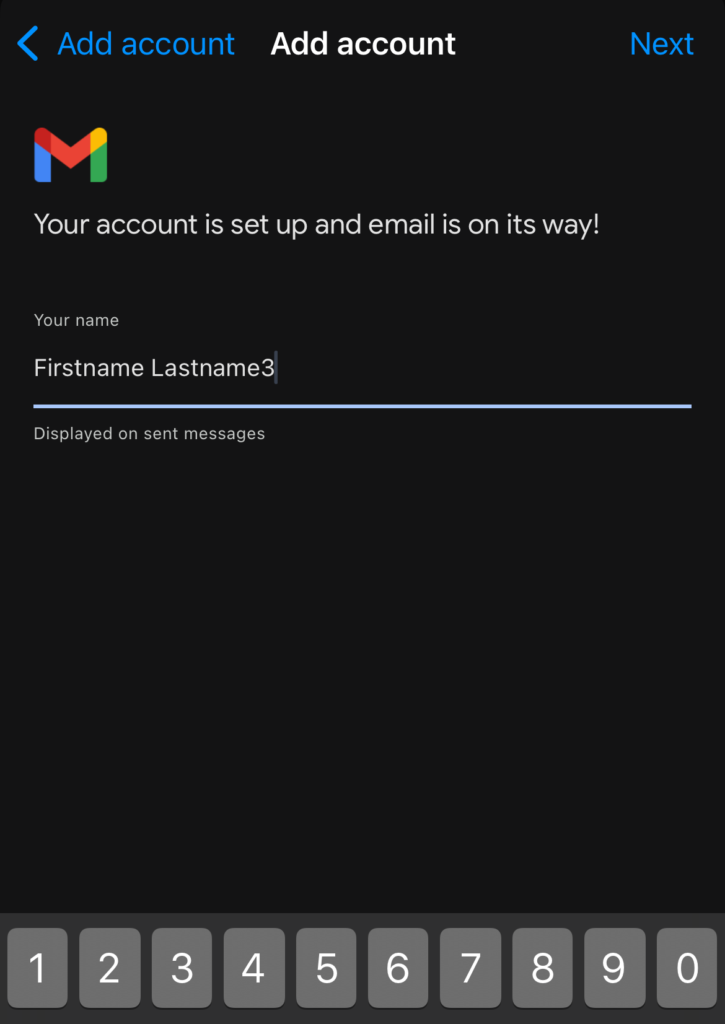 5. Put your name (Display name)
Click Next
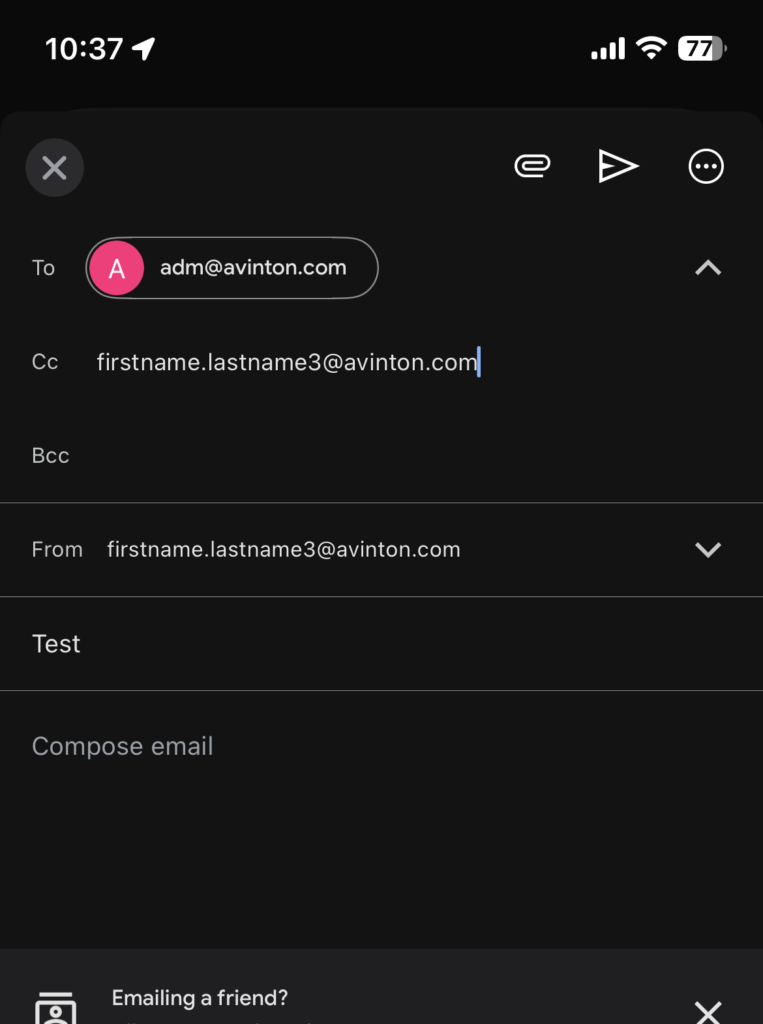 6. Send out test email
To: adm@avinton.com
CC: your avinton email
Subject: Test
Body: Test
Checking your email on PC (Mozilla Thunderbird)・Mozilla Thunderbird(PC用メールクライアント)
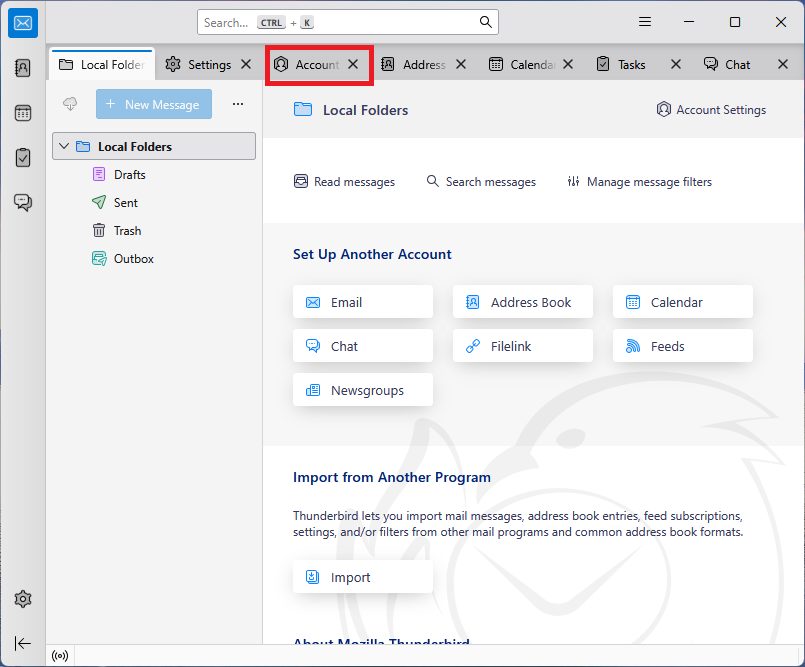 1. Mozilla Thunderbird :
Download here:
https://www.thunderbird.net/
Install and configure:
Go to Account Settings:
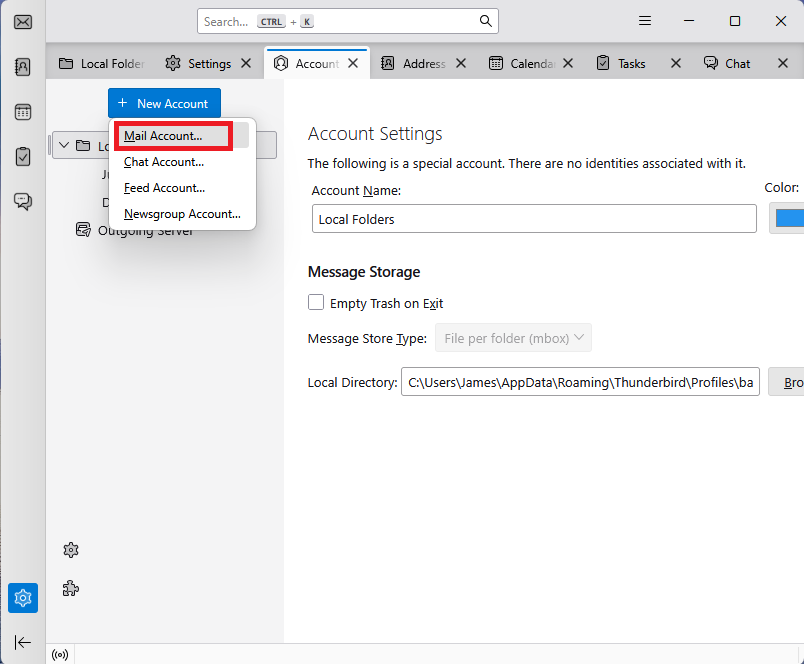 2. New Account → Mail Account:
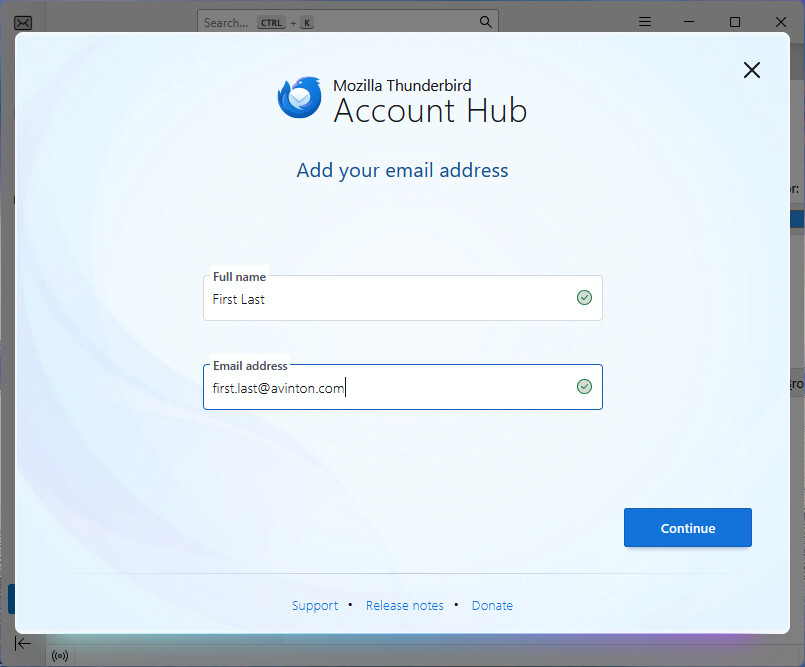 3. Fill in your Name and Email Address
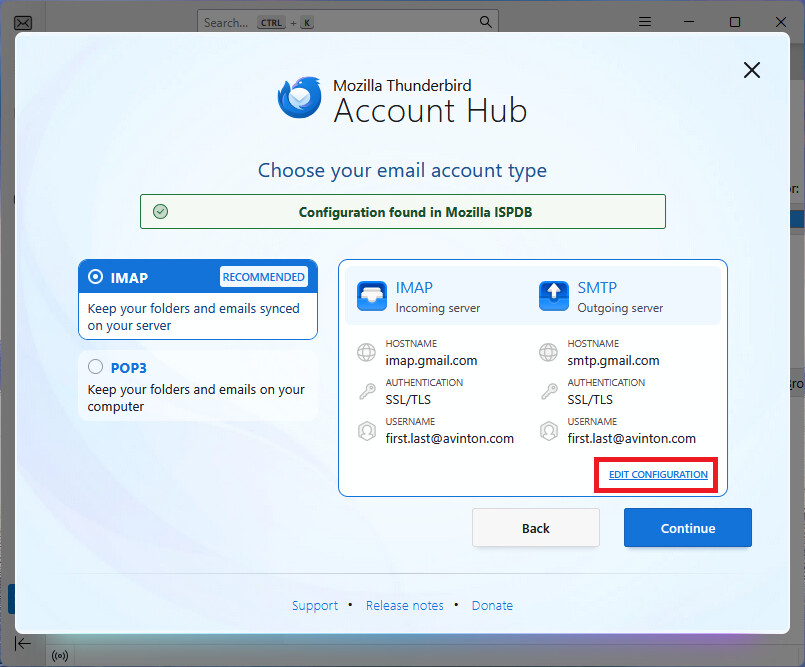 4. Edit Configuration
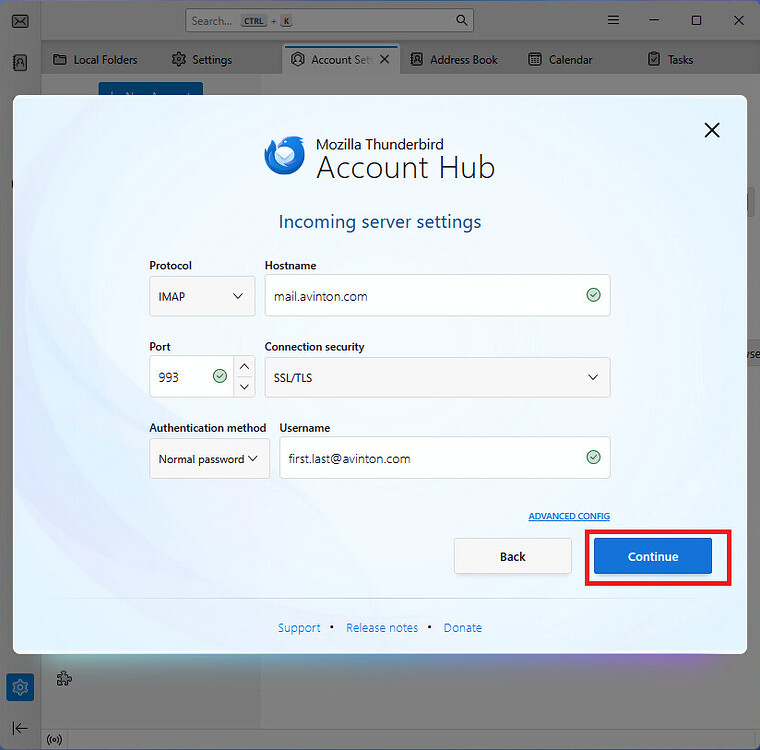 5. Enter the following:
IMAP Mail Server Address: mail.avinton.com
Port: 993
Connection security SSL/TLS
Authentication method: Normal password
Username: your avinton email address
and press Continue
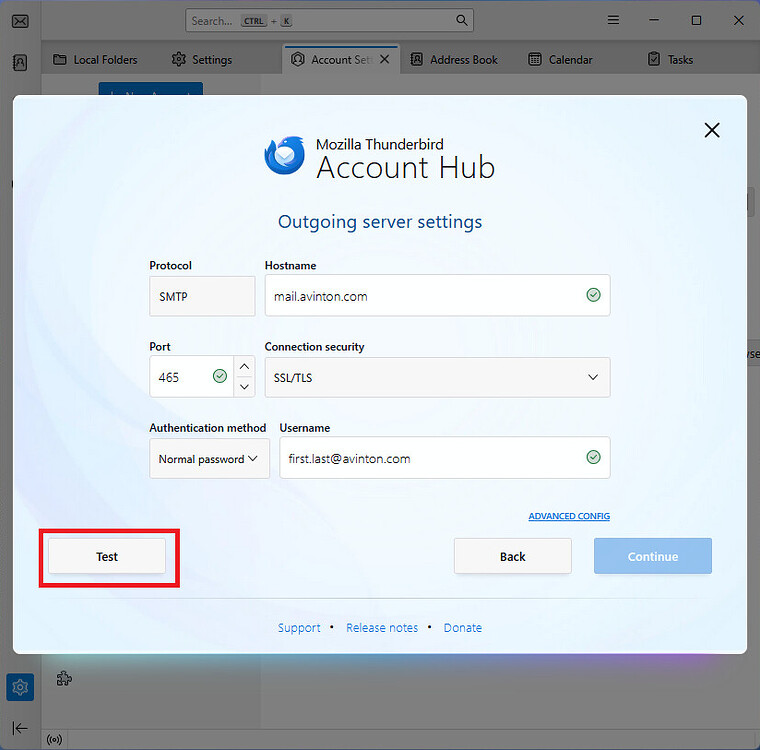 6. Enter the following:
SMTP Mail Server: mail.avinton.com,
Port: 465,
Connection: SSL/TLS,
username: your avinton email address
press Test
then Continue
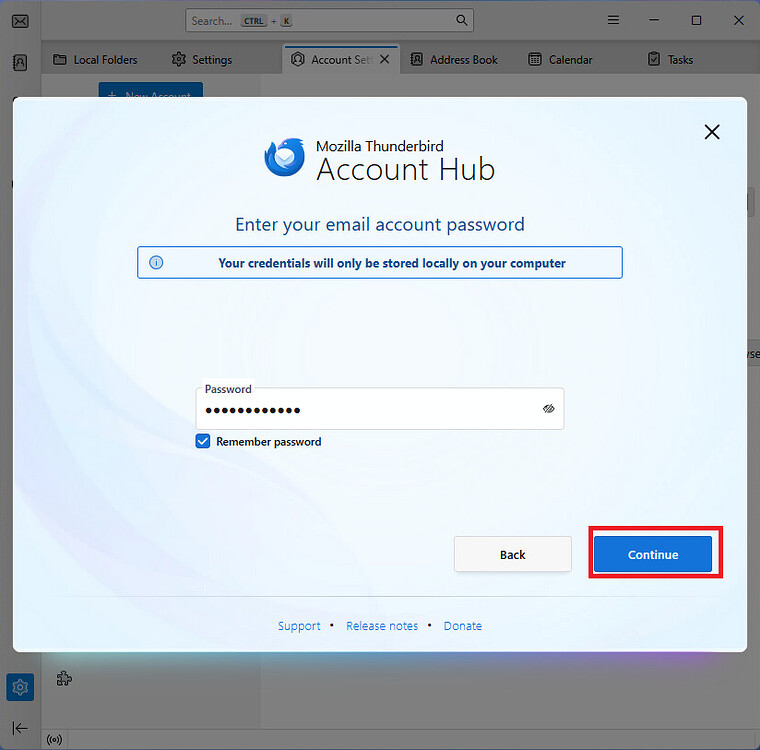 7. Enter your Avinton Mail Password and press continue:
Section 2 Google ・Gmail Account setup with avinton.com email address
Please set up a Google and Gmail account to streamline the exchange of internal documents. Your Avinton timesheet and other essential files will be shared through this account.
Please note that all official communications will be sent to your avinton.com address, and not this gmail; kindly use the webmail to check your inbox from any communications from Avinton.
GoogleアカウントおよびGmailアカウントの設定をお願いいたします。Avintonのタイムシートやその他必要なファイルは、このアカウントを通じて共有されます。
Gmailはタイムシート等の共有専用のアカウントです。業務上のメール送受信には、必ずウェブメール(Webmail)をご使用ください。
Step 1. Create Google Account

Create Google Account using firstname.lastname@avinton.com address
1. Go to theGoogle account signup page
2. Insert your first name and last name → click “Next”
3. Insert basic information → click “Next”
4. Click “Use your existing email”
5. Insert your firstname.lastname@avinton.com address (Same as webmail address) → click “Next”
→To avoid typo, copy-paste the webmail address into the input box instead of typing it manually
6. Verify your email address on the webmail inbox
Open the webmail (here** with your email address as the username and the password )
Check the email inbox and find the email from Google Email Verification and click the link in the email or insert verification code
**At the Avinton office use the following link

7. Open Gmail on your new Google account
8. Create your Gmail address as firstname.lastname.avinton@gmail.com (find from email “WelcomePackage” or “アカウント発行お手続きのご連絡”)
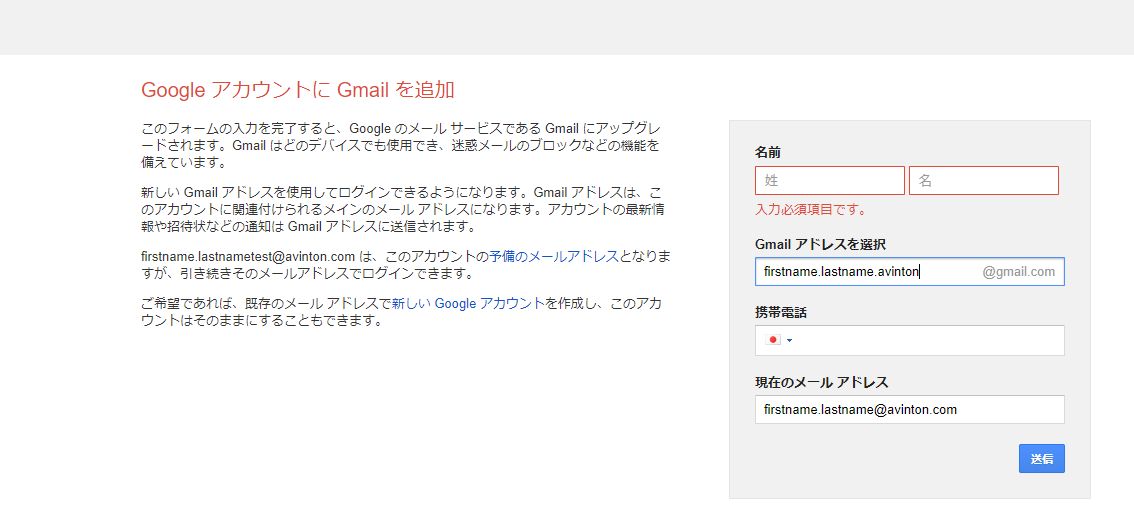
9. Submit
10. Verify the account using your private phone number
*** Please note that this Gmail account is not used for any communications. All official Avinton communications will be sent to your avinton.com address; please check your webmail regularly.***
【重要】今後の連絡先について 業務連絡にはこちらのGmailは使用せず、avinton.com のアドレスを使用します。ウェブメールにてこまめにメールチェックを行ってください。
Step 2. Enable Google Chat
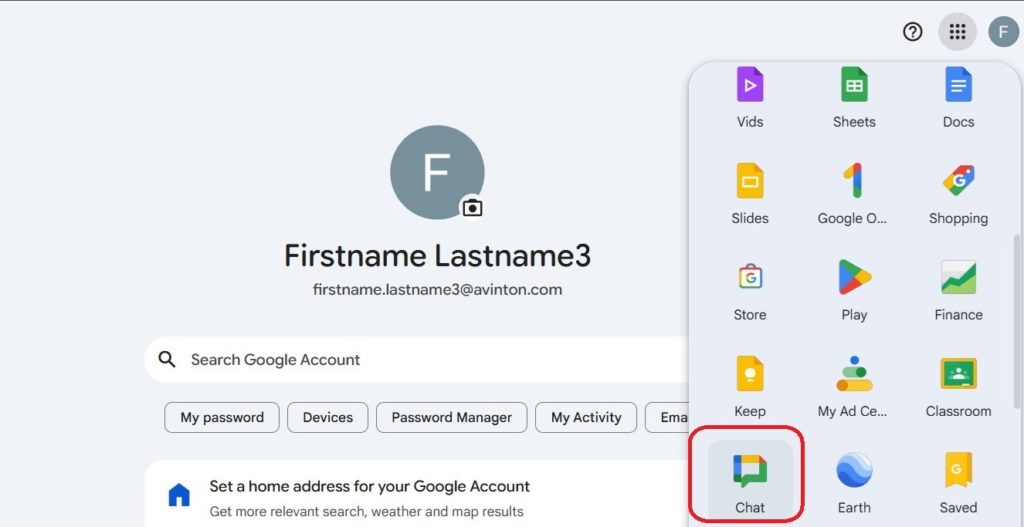 1. Open Google Chat
2.  Open Settings
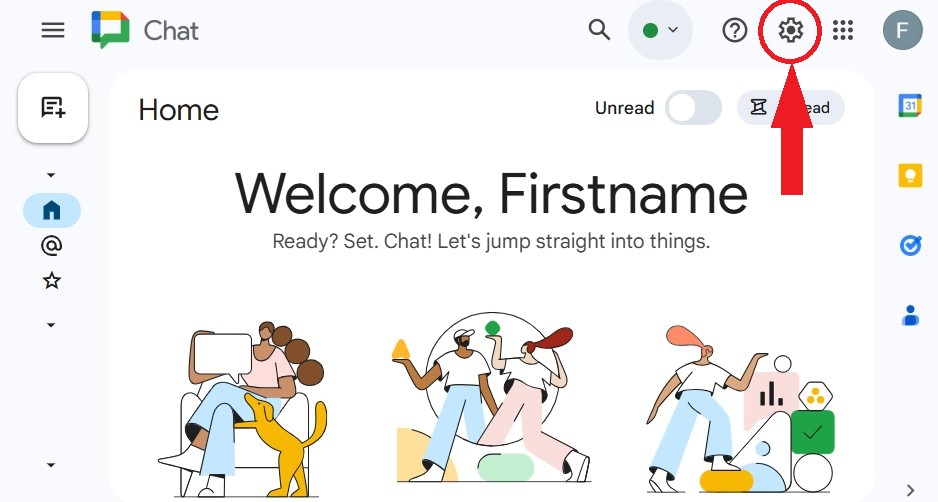 Open Settings
 3. Go to “Access Restrictions”
4. Select “Anyone” on “Who can invite you to spaces?”
Section 3 Send Test email from avinton.com address
1. Create new email from Avinton webmail
2. Send an email address to adm@avinton.com
3. Enter “test” in subject and body
4. Send